Friday, December 26, 2025

VNC Console Connection from Windows to Oracle Cloud Virtual Machine Instance

I generallay use cloud shell for console connections, but recently for bringing an image to OCI, troubleshoot and complete the installation I needed serial connection. I am using Windows with WSL, and most of my customers also prefer Windows, so I thought this will be good idea to take note of the steps for future myself as well as customers. This is based on my colleague Florian's Git Post which was brought to my attention by Kenan, another colleague when I needed most, thanks to bot of them! So here we go:

Steps

1 Download and unzip Portable Git Bash I prefer portable one, you can also install it with right click context menu integration. This will give us ssh in Windows without going into Powershell details.

2 Download a VNC Viewer, I prefer TigerVNC as it doesn't require any installation.

3 Create a console connection to the instance:

  • Go to OCI Console and Compute
  • Find your instance and click on the name
  • Go to OS Management tab and scroll down to Console Connections
  • Click Create local connection
  • You can use OCI generated ssh keys, or bring your own key.

You can use compute instance-connection create cli command.

4 Copy VNC connection string for Linux/Mac


You can use compute instance-connection list cli command by filtering only ACTIVE connections.

5 We will update the command to use SSH key for authentication
After adding -i ~/.ssh/jump-server.key -o HostKeyAlgorithms=+ssh-rsa -o PubkeyAcceptedKeyTypes=+ssh-rsa to the script and it will look like this

6 Run the script in git bash

7 Connect using VNC Viewer to VNC server at localhost:5900


Some usefull scripts

Find all RUNNING instances in $compartment_id where instance name like 'qradar':

Find all ACTIVE console connection for particular $compute_instance_ocid:

Generic script without OCI CLI dependency with minimum input:

All in one script which finds compute instance, creates console connection and start SSH port forwarding for VNC serial connection :

Sunday, November 16, 2025

Troubleshooting Connectivity Issues

Open port 8000 as rule number 5 and save state

List firewall rules and execution order

Delete firewall rule $line_number

Usefull scripts while trouble shooting connectivity issues:
  • find ports listening with netstat and ss
  • create server process to listen port 5432
  • working with iptables

Saturday, May 3, 2025

Sending Email with APEX_MAIL and Mailx using OCI Email Delivery

This is a very common requirement, funny that I've never used it until today. So the requirement is to send emails from my APEX application using APEX_MAIL package. For cloud deployments (especially on Autonomus Database) recommended way is to use Email Delivery service. And of course most customers would like use their own domain as the sender. So here are the steps:

1 Create email domain following Developer Services >> Email Delivery >> Email Domains >> Create Email Domain

2 Add DomainKeys Identified Mail (DKIM)

Create DKIM selector in the <prefix>-<shortregioncode>-<yyyymm> format. You can find short region codes here .
Click Generate DKIM Record button, it will populate CNAME values, save these values to update your DNS records.
Until your DNS records updated, you will see it inactive.

3 Update your DNS records, add new CNAME. I am using Cloudflare but it can be OCI DNS Management as well.

Once the DNS records updated, it will become active. You can check the status using refresh button.

4 Create Approved Sender.

5 Update DNS records with Sender Policy Framework (SPF).

You can also check the SPF configuration document . It will look like this: v=spf1 include:rp.oracleemaildelivery.com include:ap.rp.oracleemaildelivery.com include:eu.rp.oracleemaildelivery.com ~all
Add a TXT record.

6 Create SMTP credentials following User >> Profile >> Saved Passwords >> SMTP credentials >> Generate Credentials. Save the values as password won't be displayed again.

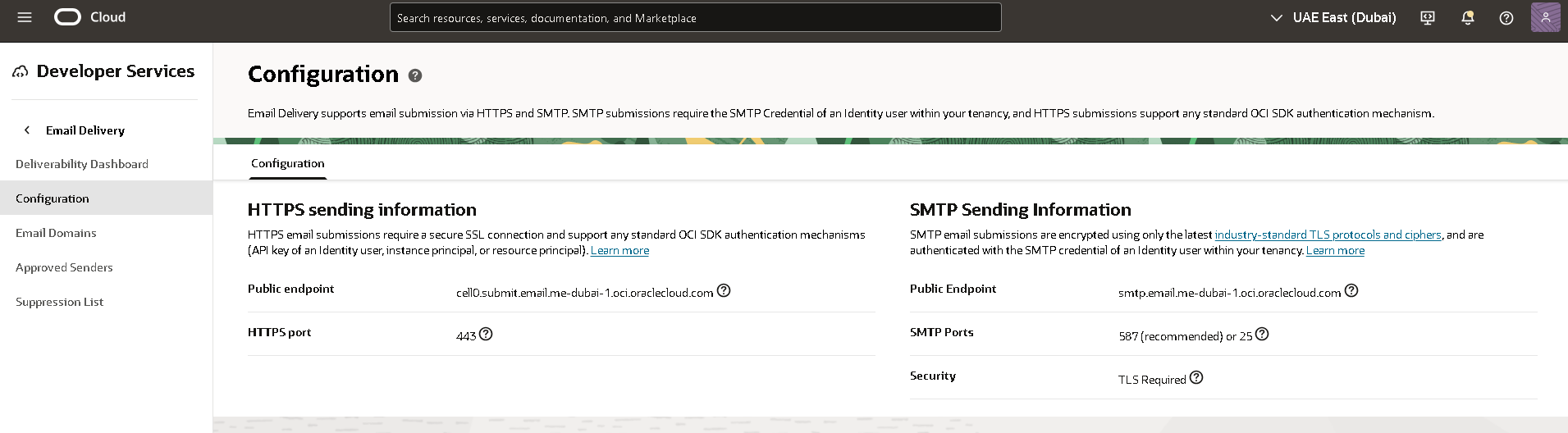
7 Get SMTP Sending Information by following Developer Sevrvices >> Email Delivery >> Configuration menu path. Copy public endpoint and port information.

8 Test sending email.

Option 1: Use APEX_MAIL

i Connect to your Autonomous Transaction Processing as ADMIN user using SQL client and configure the following SMTP parameters using APEX_INSTANCE_ADMIN.SET_PARAMETER.

ii Send a test email using APEX SQL Workshop >> SQL Commands specifying the approved sender.

There was a delay of minutes but I receieved the email.


Option 2: Use Mailx on OEL 8

i Install and configure mailx.
Then email was sent almost instantly.


References:
1.Email Delivery Service Documentation
2.Comprehensive Guide to Testing OCI Email Delivery Monir's guide was excellent, basicaly I followed the steps in hios post
3.Integrating Oracle APEX with Email Delivery Emil Delivery service has a good documentation for integrating the service with different applications
4.APEX_MAIL Package specification
5.OCI Regions and Region Keys

Featured

Putting it altogether: How to deploy scalable and secure APEX on OCI

Oracle APEX is very popular, and it is one of the most common usecases that I see with my customers. Oracle Architecture Center offers a re...